Three months later, camera numbers mean nothing
When you shoot new handmade products—like jewelry, ceramics, or leather crafts—cameras and smartphones assign non-descriptive filenames like DSC_1234.jpg or IMG_9876.jpg. On shoot day, you remember what you photographed. Three months later, when a customer asks a question about product model CRAFT-017, searching through hundreds of identical camera sequential numbers becomes a giant headache.
Matching gets worse once you have multiple platform versions of each photo. Finding the original camera shot that corresponds to a specific web thumbnail takes frustrating manual guesswork.
Why conventional batch converters are tedious
Conventional batch image software often offers "custom renaming", but it is frustratingly tedious. You have to open complex template formula editors, re-type tokens for every run, and manually create new desktop subfolders for each product. The feature exists on paper, but using it daily feels like extra work.
How SizeFold handles SKU naming in two clicks
SizeFold turns SKU organization into a frictionless, one-step action. Instead of editing formulas or manually creating subfolders, you use a dedicated session field and two preset options:
Product Photos/
  Input/                 <-- empty again, nothing waiting
  Store/CRAFT-017/
    CRAFT-017-01.jpg
    CRAFT-017-02.jpg
  Website/CRAFT-017/
    CRAFT-017-01.jpg
    CRAFT-017-02.jpg
  Originals/
    DSC_1234.jpg         <-- camera original, safely archived
Here is how the setup works in SizeFold:
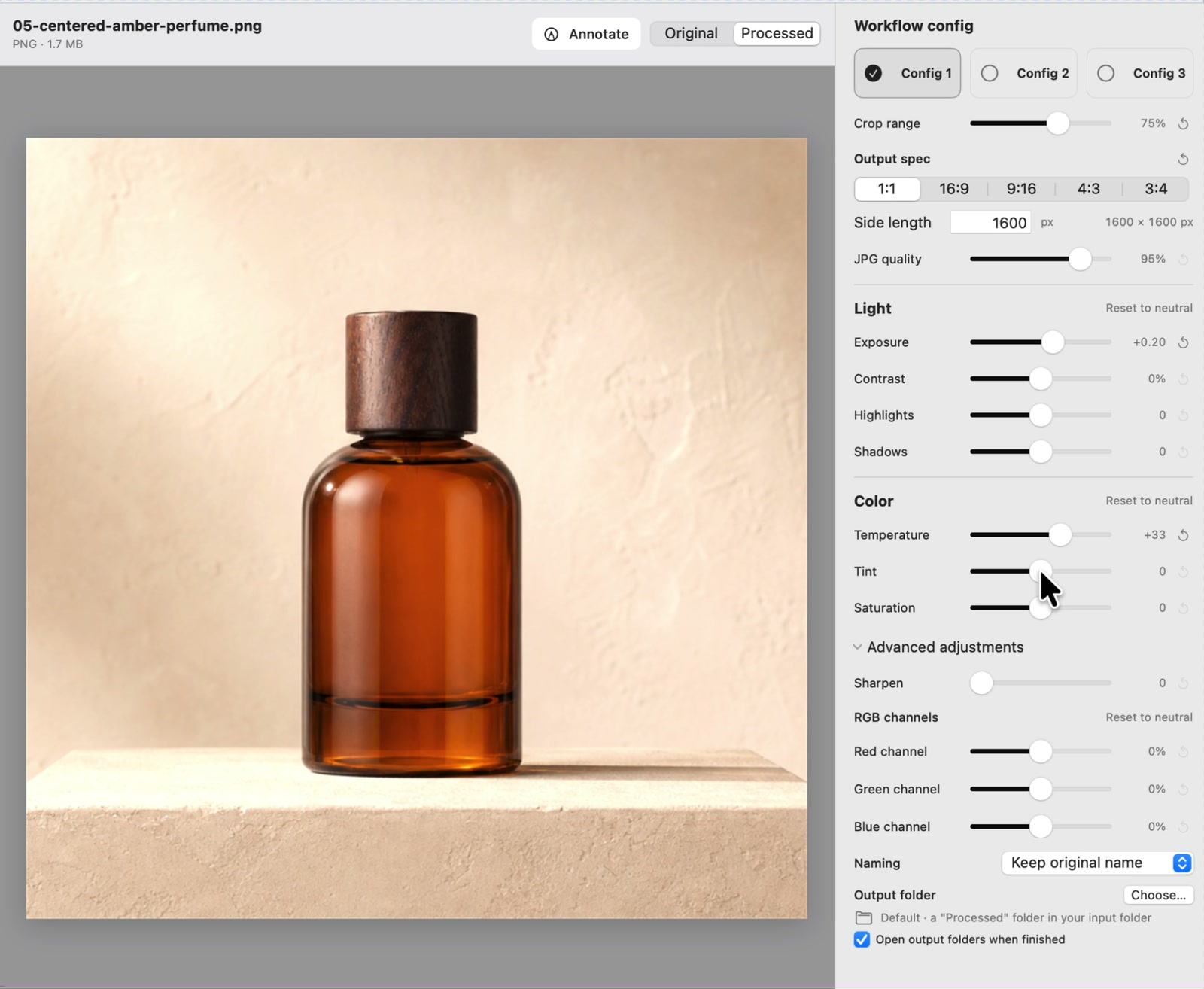
- Type the Model ID Once: At the top of your session controls, enter your product identifier in the
Product modelinput box (e.g.CRAFT-017). - Select Naming Style: In your configuration settings under
Naming, chooseModel + numberfrom the dropdown menu (e.g.MODEL-001.jpg). No complex formula building required. - Check "Organize by model": Enable the
Organize by modelcheckbox. SizeFold automatically creates a subfolder namedCRAFT-017/inside your target directory and places all exported deliverables inside it.
By filling in a single input box, SizeFold handles both file renaming and subfolder creation simultaneously.
Auto-incrementing counters: Zero file overwrites
When you click Run, SizeFold automatically inspects the target model subfolder. If files like CRAFT-017-01.jpg already exist, SizeFold automatically resumes numbering from the next available counter (e.g. CRAFT-017-02.jpg). Existing product photos are never overwritten or lost.
Note on error recovery: If you accidentally type the wrong model ID, SizeFold's one-click Undo batch button safely deletes the last run's exports and restores source files back to Input/ before you re-run with the corrected SKU.
Achieving true 2-way file traceability
Searching CRAFT-017 in macOS Finder instantly surfaces all exported deliverables that use the model string in their filenames or subfolders. The archived camera source file in Originals/ preserves its original camera filename (DSC_1234.jpg).
For complete 2-way traceability back to exact camera originals, SizeFold supports custom filename templates combining {model}, {original} (the camera filename), and sequential counters (##). Using a template like {model}_{original}_##.jpg outputs CRAFT-017_DSC_1234_01.jpg. When inspecting an exported web JPEG months later, the original camera filename DSC_1234 is embedded directly inside the deliverable's name, making lookup effortless.
The next item: Complete traceability
When you shoot your next item (e.g. CRAFT-018), place new photos in Input, type the new Model ID into the top bar, and click Run. Your naming options and target paths stay saved.
Months later, searching a product model in macOS Finder instantly surfaces all platform deliverables cleanly organized in their respective model folders. Build your naming rules once; every future batch is named, organized, and archived automatically.