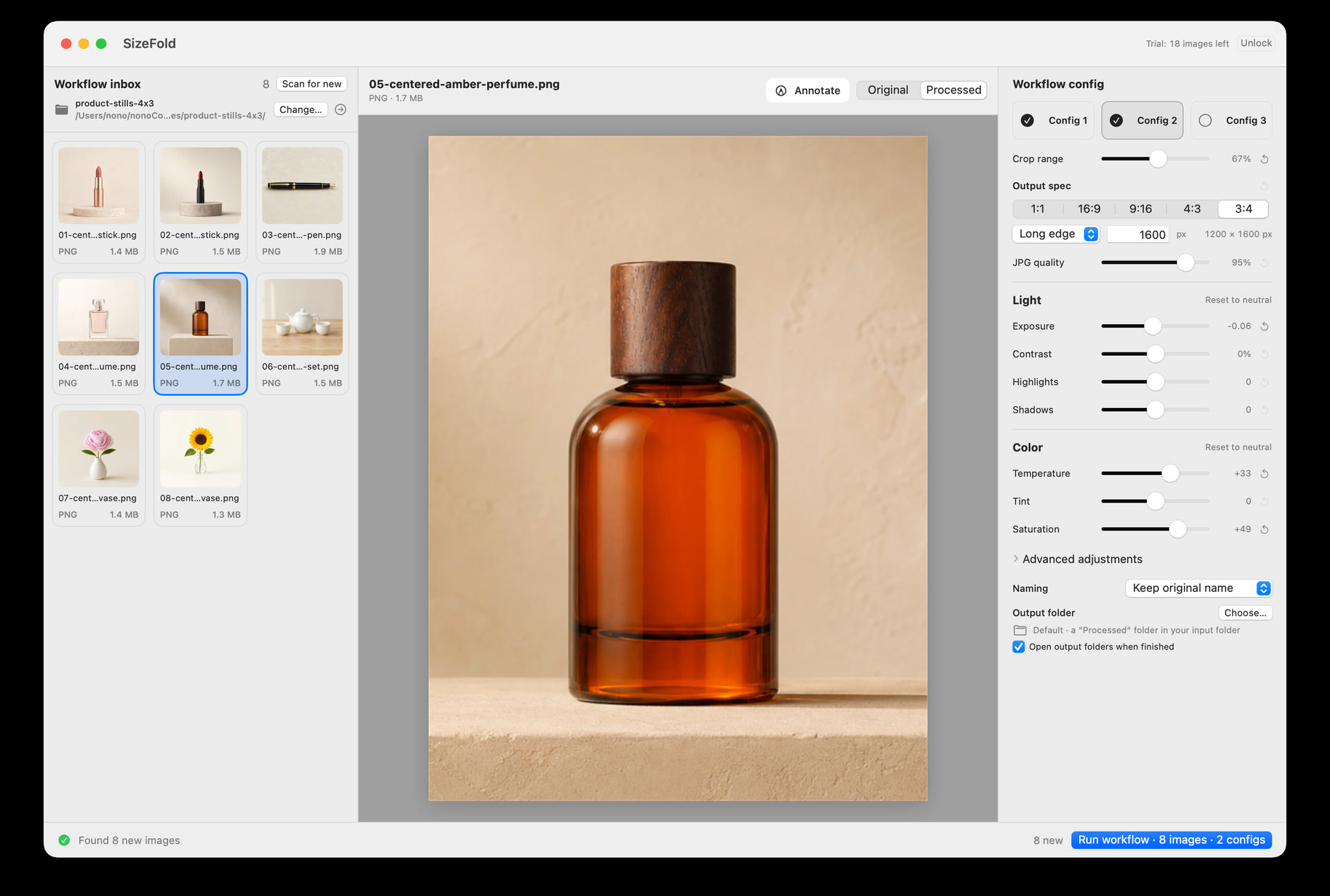
Start with one clear handoff
Use Input for the photos you want to process next.
If your camera or phone already saves the finished shoot to a known folder, that folder can be Input. Move old files out first so the folder contains one product batch.
If several products are mixed together, make a separate folder for each product and copy the one you are ready to process into Input. This small step prevents yesterday's photos from being exported with today's.
Keep the queue easy to read
Finished files should not look like new work.
Input is for source photos waiting to be processed. Named output folders hold the saved versions; Originals holds the source photos after a successful run. Keep those folders outside Input, or in clearly named subfolders, so you can open Input in Finder and know what still needs attention.
Product Photos/
  Input/
    PEN-017-01.jpg
    PEN-017-02.jpg
  Store/
  Website/
  Social/
  Originals/
When the shoot is ready
Adding photos does not start a run.
New files can arrive in Input while SizeFold is open. Scan for New, or press Cmd-R, when you want the app to show the latest files. Then look through the current batch and remove any test shots or photos you do not want to publish.
Click Run only after that product is finished. This keeps a half-shot product from being exported by accident.
The folder needs a boundary
Separate batches before you click Run.
- Move test shots and rejected frames out of Input.
- Keep different products or lighting setups in separate batches.
- Use a dedicated Input folder instead of a permanent photo archive.
- Put source photos at the top level because the workflow does not guess through nested folders.
After you press Run
Each source photo finishes on its own.
SizeFold creates the enabled outputs from the original photo. When every output for one source succeeds, that original moves to Originals. If one output fails, the source stays in Input so you can fix the problem and run it again.
Other photos can finish normally. The file left in Input is the one that still needs attention.
For the next product
Use the same folder and click Run again.
When today's photos have left Input, put the next product shoot in the same folder. SizeFold keeps the crops, sizes, color adjustments, naming format, and output folders you already chose. Add a model name only when you want it in the filenames or folder structure.