Where tethering ends and the repeatable output workflow begins
SizeFold is not tethering software, and it is not a RAW developer. Use whatever camera, tethering utility, or transfer tool you already prefer—whether that is Capture One, Canon EOS Utility, Sony Imaging Edge, Lightroom, or wireless tools like LocalSend.
Those tools specialize in camera control, tethering ingress, and initial RAW development. Once your finished JPG, PNG, HEIC, or TIFF source photos land in a folder on your Mac, that folder becomes the Input queue where SizeFold takes over to automate multi-ratio cropping, SKU folder organization, and batch output.
Use any existing folder as your Input Folder
SizeFold doesn't force a hardcoded app directory on you, nor does it require you to change how or where you save your files. You simply select any existing folder on your Mac—such as your camera software's tethering save directory or LocalSend's download folder—as SizeFold's Input Folder.
Point SizeFold to the folder where your incoming shots already land:
- Camera Tethering Utilities: In Canon EOS Utility, Sony Imaging Edge, Capture One, or Lightroom, set your session save directory to your preferred Mac folder, then select that same folder as SizeFold's Input Folder. Every shutter press lands immediately in SizeFold.
- SD Card Reading: Insert your camera card, copy your product shoot into your chosen folder, and select it in SizeFold.
- Wireless Smartphone Capture via LocalSend: Shoot on your iPhone or Android phone, tap share via LocalSend over Wi-Fi, and send shots directly into your designated Mac folder.
Because SizeFold attaches directly to your existing workspace folder, you get instant processing without changing your daily filing habits.
Why SizeFold fits lightweight studio workflows
SizeFold is built as a lightweight, native Mac app designed specifically for post-capture output automation:
- Tiny Footprint: SizeFold is just a few megabytes in size, launching instantly and using minimal Mac RAM.
- 100% Local & Private: Processing happens entirely on your Mac. SizeFold makes zero network requests, installs no background daemons, requires no user account, and tracks no analytics. Your product photos never touch the cloud.
- No Subscriptions: One clean, native Mac app without recurring monthly fees or account lock-ins.
The item-by-item studio loop: Catch errors while set is live
Instead of shooting dozens of products blindly in one big batch and suffering through post-processing later, switch to an item-by-item studio routine:
- Shoot Product #1: Place Product #1 on the table and capture 10 to 20 frames. The shots instantly populate SizeFold's left panel.
- Inspect Immediately: Open SizeFold to review the incoming frames. If the lighting or focus isn't right, delete the flawed shots right away with
Command + D, adjust your studio lights or camera angle, and re-shoot Product #1 while your set is still live. - Quick Color & Crop Verification: If the shots look good, do a 5-second check. Adjust color presets (exposure, white balance, contrast, or shadows) if needed for your store style, and verify crop framing by pressing and holding the preview.
- One-Click Output & Archiving: Enter an optional SKU/Model ID (or leave it blank) and click Run. SizeFold renders all platform formats, names files by SKU, creates target subfolders, and archives original camera files to
Originals/in a single pass.
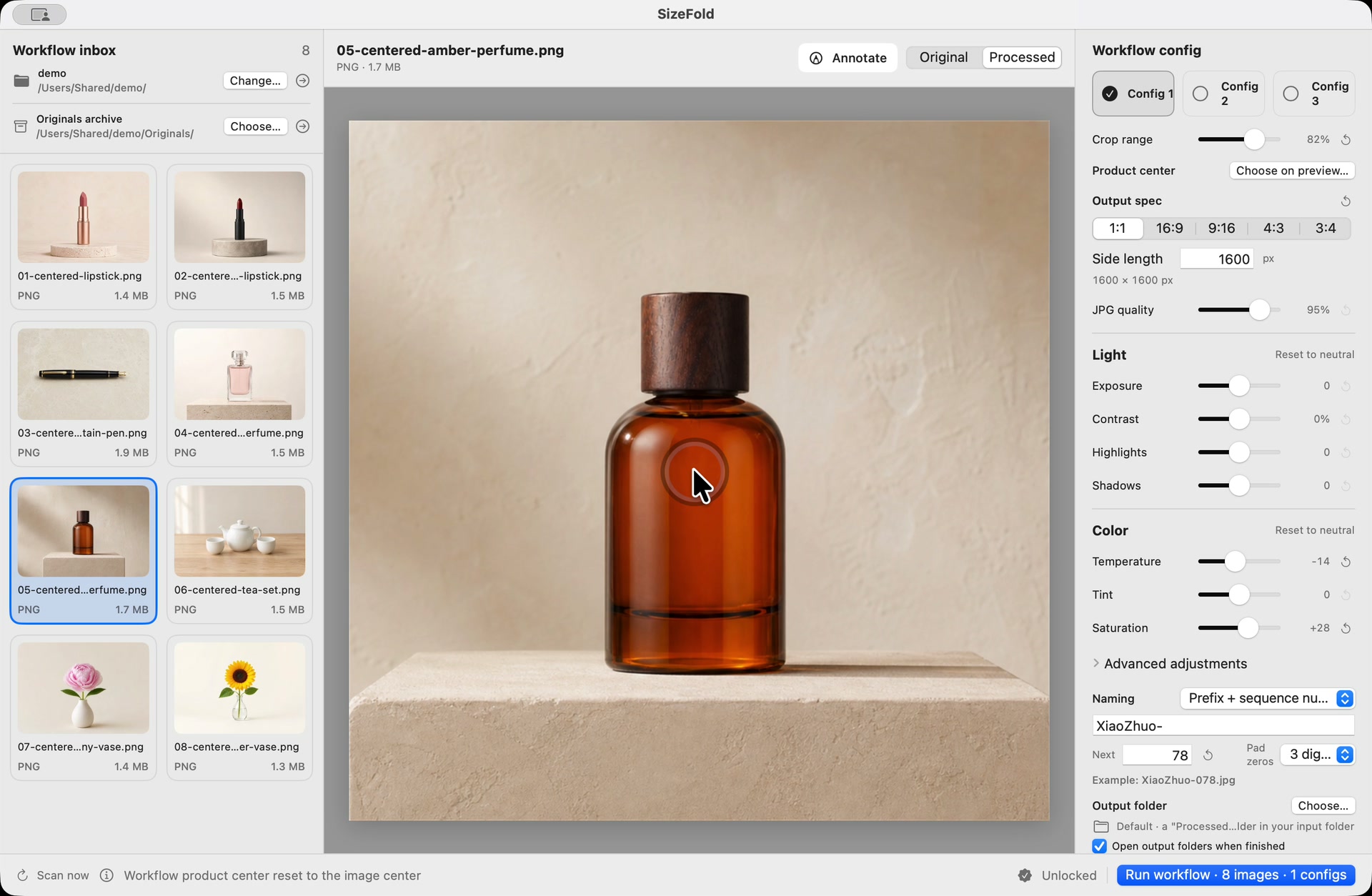
Light, fast, and organized for the next shoot
As soon as a batch completes, original source files move to Originals and Input automatically returns to empty. Place Product #2 on set, capture 10–20 frames into Input, do a 5-second sanity check, and click Run. Because your crop ratios, color styles, and target folders are saved, processing Product #2 takes just a few seconds.
With direct capture ingress, item-by-item verification, and saved output rules, high-volume studio photography becomes a fast, light, and stress-free assembly line.