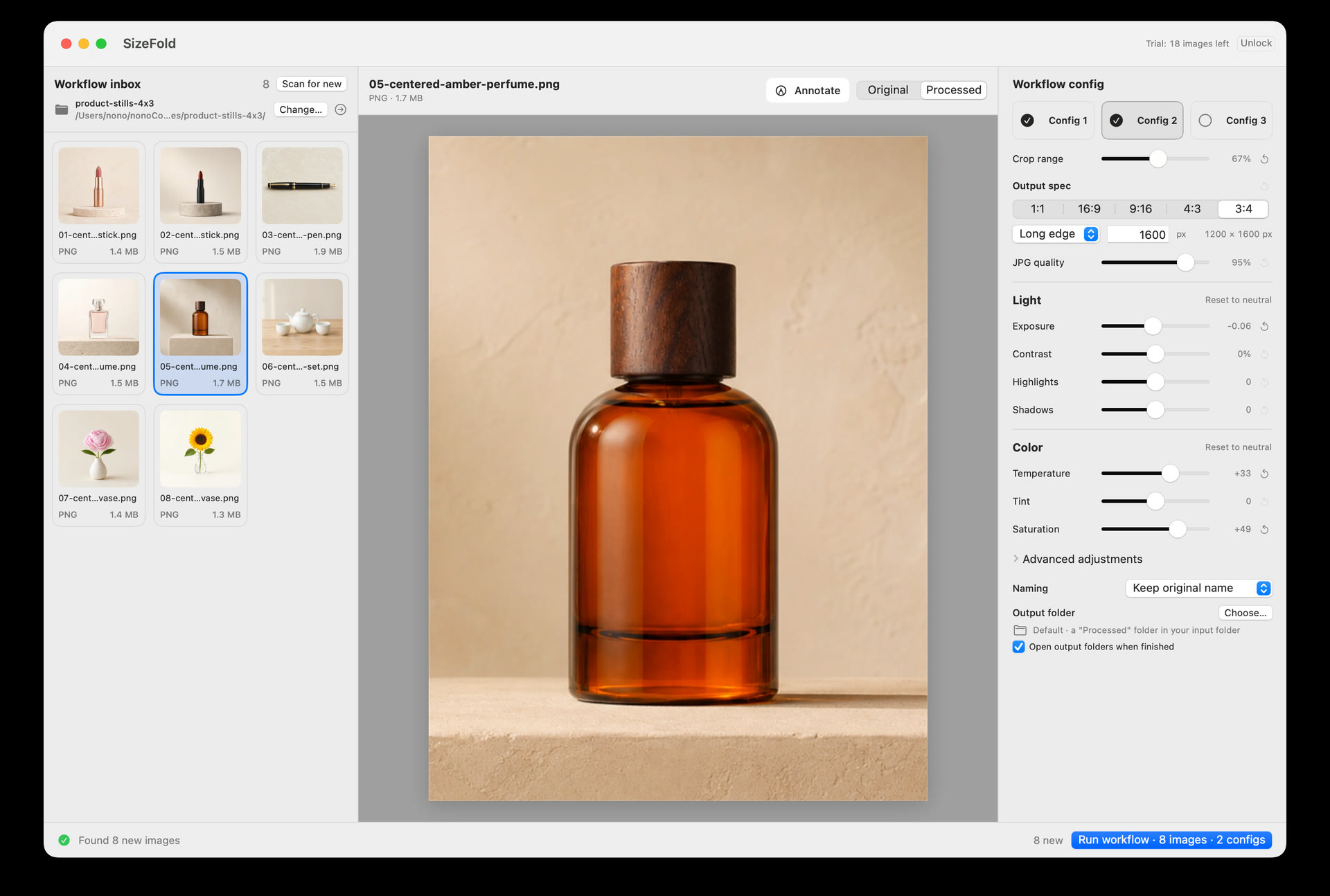
Why "Compress Image to KB" Matters More Than a Quality Percentage
Most image editors give you a generic JPEG quality slider from 1% to 100%. The problem is that a 85% JPEG of a minimalist white-background ring might be 140 KB, while an 85% JPEG of a textured woven fabric at the same 2000×2000 pixel resolution can easily exceed 1.8 MB.
When you upload oversized files to Shopify, Etsy, or your own storefront, two bad things happen:
- Aggressive marketplace re-compression: If a file is too heavy, marketplace CDNs apply harsh automated re-compression that smears fine text, metal engravings, and fabric grain.
- Slow Core Web Vitals (LCP) on your store: Product collection grids with twenty 1.5 MB thumbnails cripple mobile page speed and hurt search rankings.
| Use Case / Placement | Recommended Target Size Cap | Recommended Pixel Dimensions | Why This Target Works |
|---|---|---|---|
| Shopify & Website Collection Grids | Compress to 200 KB – 300 KB | 1200 × 1200 px or 1600 × 1600 px | Instant mobile grid loading without visible artifacts |
| Etsy & Shopify High-Zoom Product Photos | Compress to 500 KB – 800 KB | 2000 × 2667 px (3:4) or 2048 × 2048 px (1:1) | Sharp zoom detail while avoiding harsh CDN crushing |
| Amazon Main & Gallery Images | Compress to 1 MB (Max 10 MB) | 2000 × 2000 px (1:1) | Fast Seller Central upload and clean 2x zoom activation |
| Wholesale Portals & Spec Sheets | Compress to 100 KB – 200 KB | 1000 × 1000 px | Meets strict B2B portal attachment and ERP upload limits |
How SizeFold Hits Your Exact KB or MB Limit Automatically
Instead of exporting a folder, checking Finder to see which files went over 500 KB, and re-exporting them at a lower slider value, SizeFold lets you enable a Maximum File Size (KB / MB) cap on each output configuration.
When a file size cap is enabled, SizeFold renders the cropped and resized image directly from the camera original and automatically finds the highest JPEG quality that fits within your target byte budget (for example, 200 KB, 500 KB, or 1 MB). Simple white-background frames stay at maximum quality, while complex textured frames step down just enough to stay under your limit.
Convert HEIC to JPG on Mac—Without a Separate Converter Step
Many small-shop owners shoot product photos on an iPhone and transfer them to a Mac via AirDrop or LocalSend. By default, iPhones capture photos in HEIC with a Display P3 wide-gamut color profile.
If you convert HEIC to JPG first using a separate tool and then run a second tool to crop and compress to KB, you suffer double JPEG generation loss—and often lose color accuracy if Display P3 isn't converted to standard web sRGB.
In SizeFold, you drop your .heic, .png, .tiff, or .jpg files straight into the Input folder:
- Native HEIC decoding: macOS ImageIO decodes the original HEIC file at full bit depth.
- Single-pass crop, resize & color tuning: Your saved aspect ratios (such as 3:4 and 1:1) and studio color adjustments run directly on the decoded pixels.
- Automatic sRGB embedding & KB cap: Every exported
.jpgembeds the standard sRGB ICC profile so colors never look washed out in browsers, while respecting your configured KB/MB ceiling.
Compress, Convert, and Crop in One Local Mac Workflow
SizeFold includes 200 successfully processed source images in the free trial. Run your own HEIC and camera batches locally on Mac with zero cloud uploads and no subscription.